
Appointment booking
Patients book from their phone in a minute: they choose the visit type, day and a time that is genuinely free, and confirm their number with a code — no phone tag, no schedule mistakes.

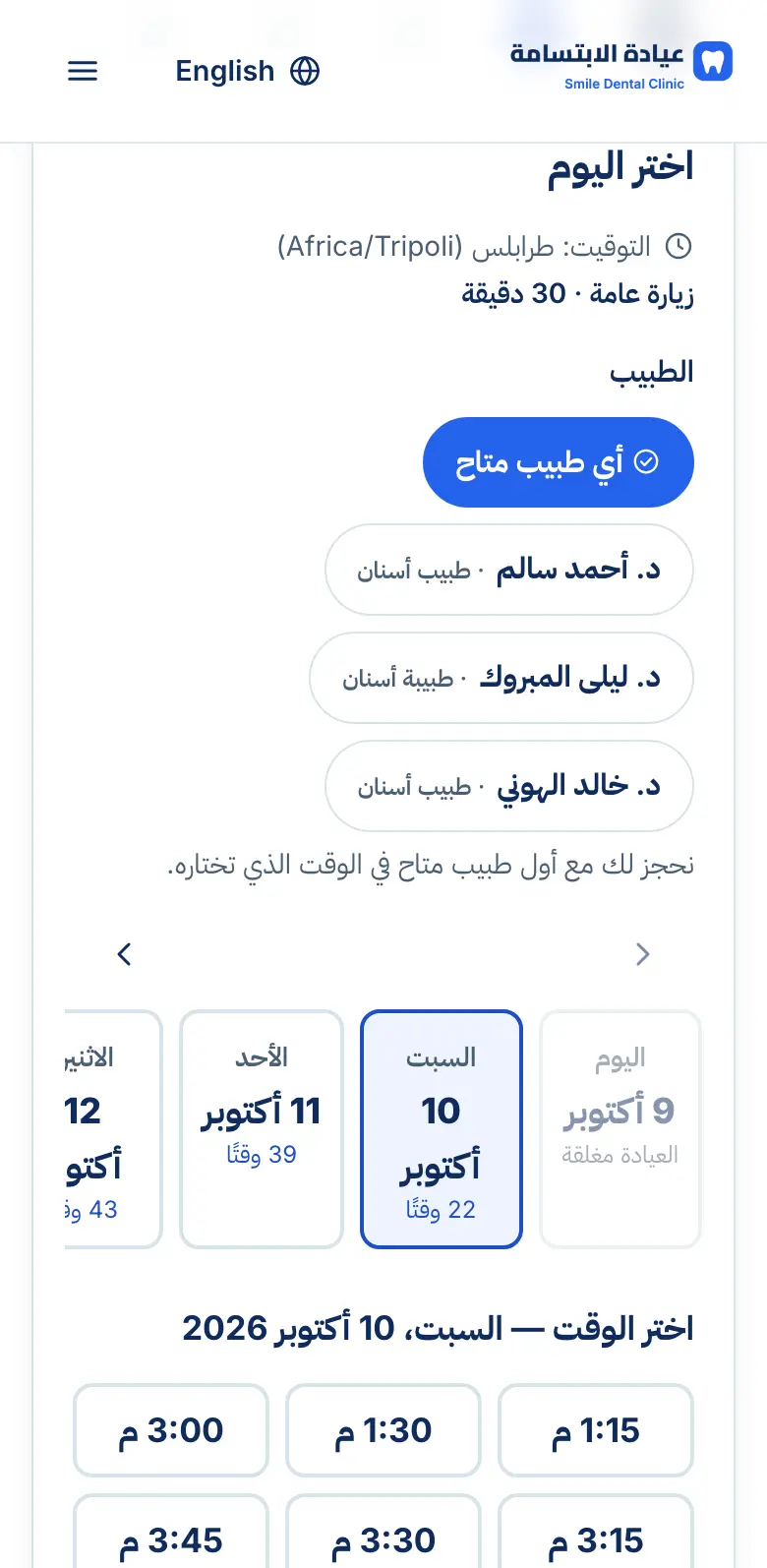
Real interface, sample data
What you get
Real availability
Patients only see times that fit your hours, breaks and days off.
No double booking
The system makes overlapping appointments impossible.
Phone verification
A code confirms the patient's number before the request is made.
Instant or approved
Your choice: bookings confirm instantly or wait for reception's approval.
Cancel and reschedule
Patients manage their visit from their account, within the notice period you set.
Waitlist
When days are full, patients join a waitlist and you offer them a time when one opens.
Automatic reminders
A reminder before the visit, at the time you choose.
Add to calendar
Patients save the visit to their phone calendar in one tap.
See it in action
Real screens from the platform, taken from the demo clinic — the names and numbers in them are sample data.
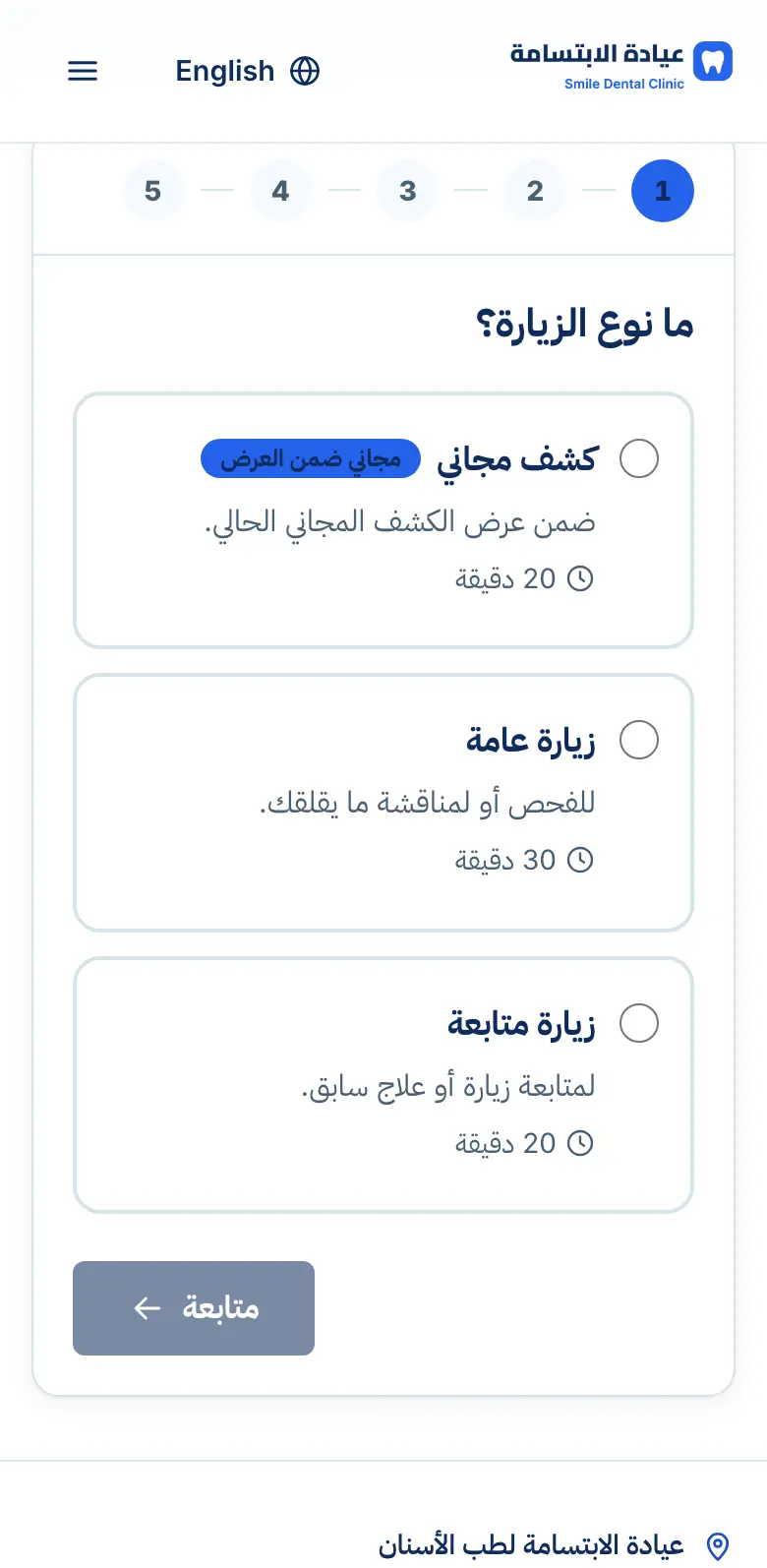
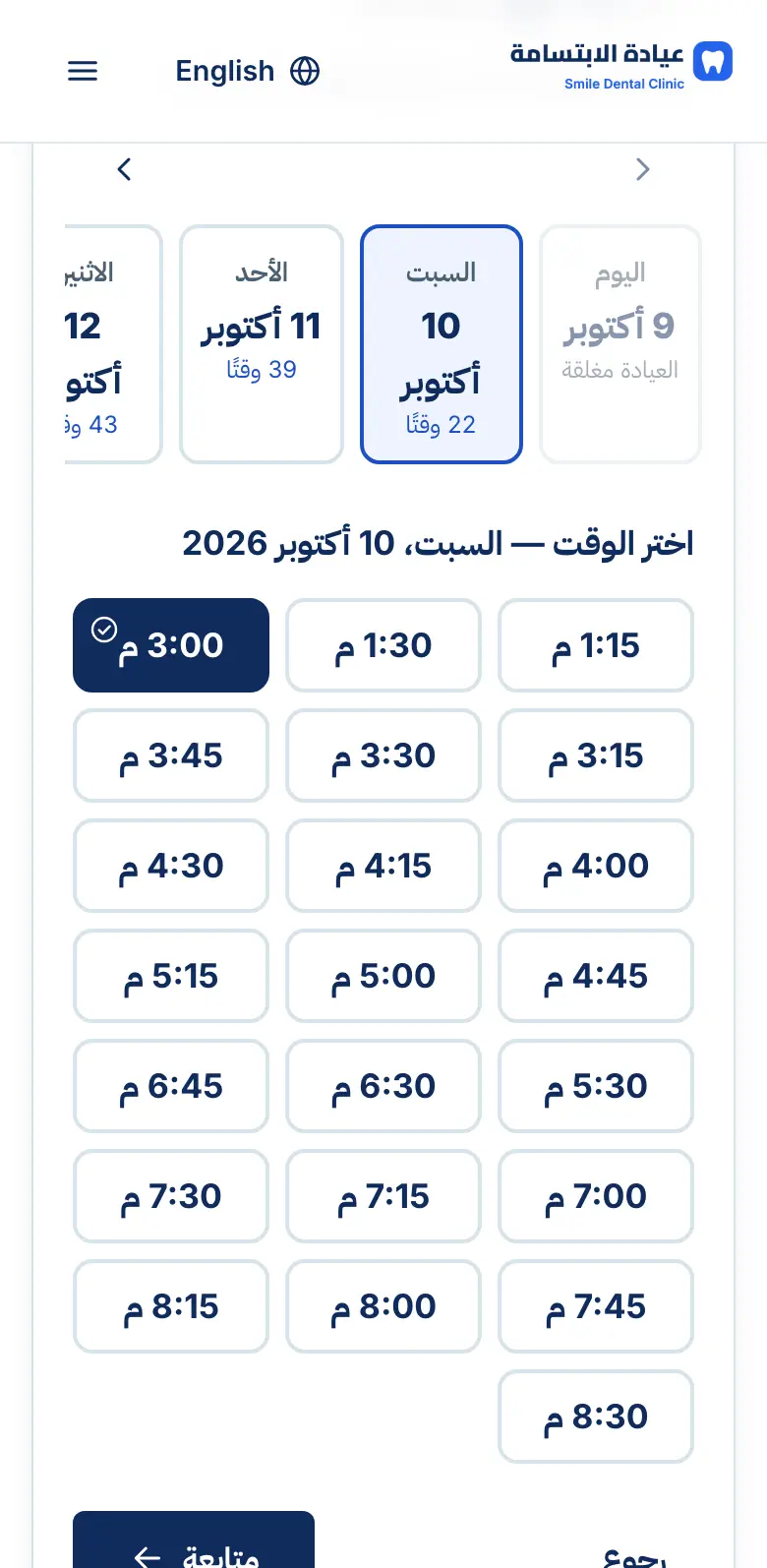
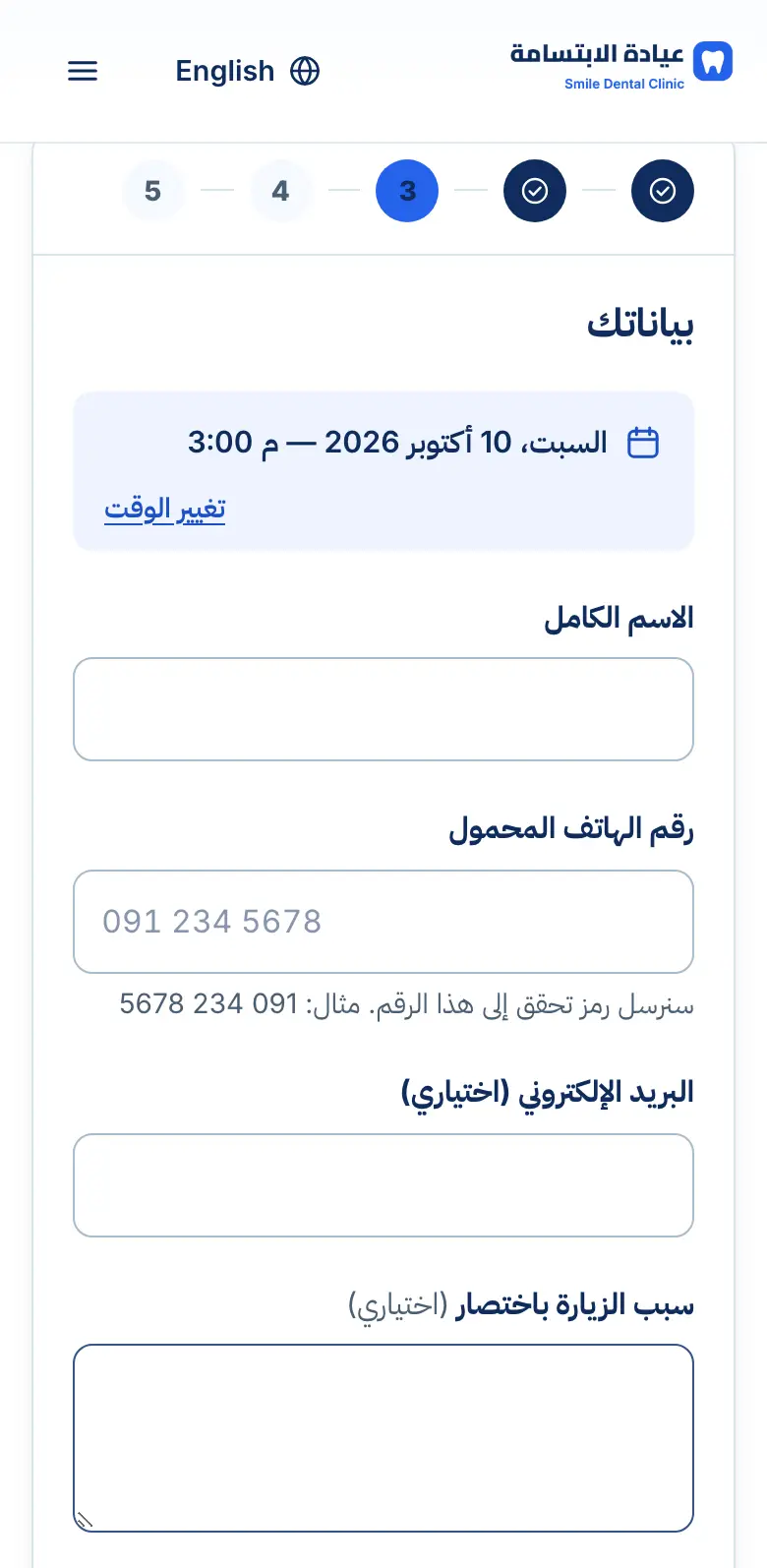
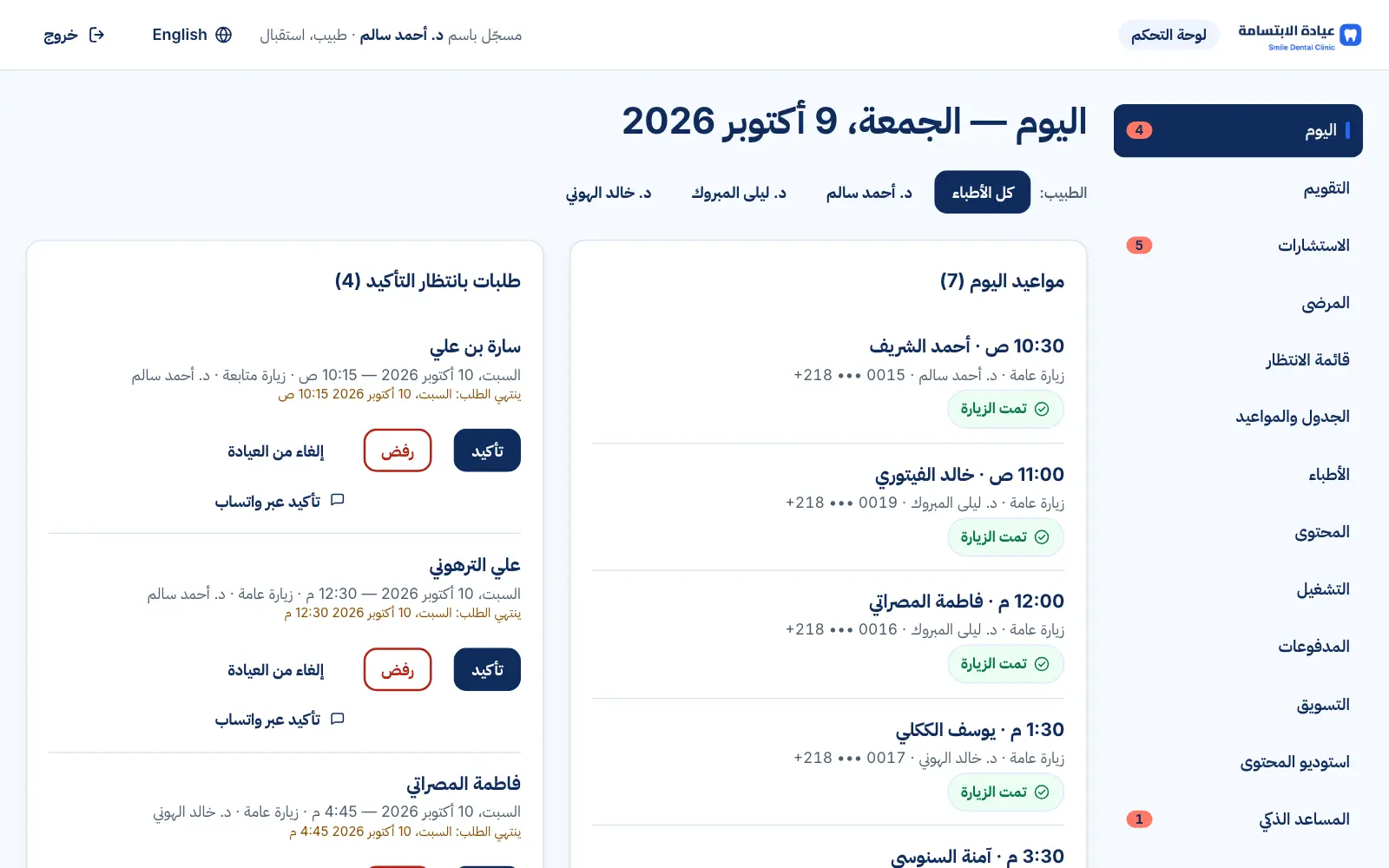
Real interface, sample data
How it works
- 1
The patient picks the visit type
- 2
Chooses an available day and time
- 3
Confirms their number with a code
- 4
Receives the confirmation, then a reminder
FAQs
Do patients need a password account?
No — a phone number and a verification code are enough.
Can I block certain times?
Yes — add holidays and blocked times from the schedule in the dashboard.
What about bookings made by phone?
Reception adds them from the dashboard under the same rules, so nothing overlaps.
Want to see this in your practice?
Book a demo and we'll walk you through it step by step.
Book a demo